| Quark Xpress |
- We recommend QuarkXpress 4.x but QX 3.3 is also accepted
- Windows or Mac OS platforms accepted
- ZIP, JAZ, or CD are accepted, you can also send your files via FTP
- Make sure you send all QuarkXpress documents, attached images, and
fonts
Remember: If we are missing anything, it
may delay your job.
Please follow the step-by-step guide provided to help avoid many of the
common mistakes while sending us your files.
1 Document Setup
Adjust your document size to your final trim size. If you need your background
colors or photos to bleed (go all the way to the edge) you can extend
the photo background to 1/8" outside the edge of the page where it
will be trimmed after printing (if you leave it on the edge, the White
paper might show after trimming). Make sure all your important data and
photos are in the safe area (1/4" inside the page edge).
2 Images and Logos (linked pictures)
Make sure that all images are CMYK color mode regardless of their original
software and use only TIFF or EPS formats. (DO NOT send JPGs, PICTs, GIFs,
BMPs, etc.) All the raster images should be minimum 300 dpi resolution
(or 1,200 dpi for b/w line art). You have to send us all the linked images.
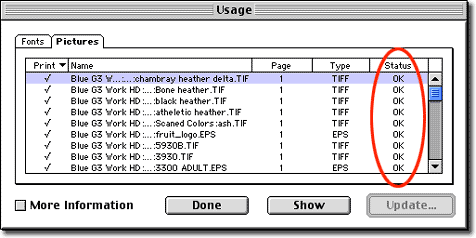
Confirm the status of all linked images before you submit your files.
Picture usage status should not display "Modified" or "Missing".
SCALING IMAGES
Scaling an image after importing it into Xpress will change its effective
resolution, which means that if you scaled the image up to 200% in Xpress,
then the final resolution will be 150 dpi which is low resolution. You
can enlarge your photo up to 125% only and you can shrink it to any size,
(shrinking the photo in the photo-editing software will make the file
size smaller so we recommend that you do it if you're not using the full
size photo). Vector art (coming from Illustrator) can be reduced or enlarged
to any size with no problem.
3 Colors
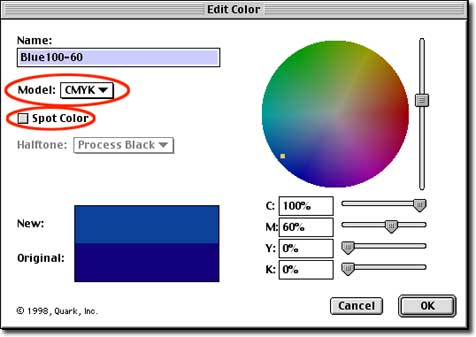
Make sure that all the colors used in Xpress are CMYK whether used for
Fill, Stroke or Gradient. Also all the images linked to Xpress should
be in CMYK mode.
Note on Default Colors:
If you are changing the color breaks of default colors, rename them because
they might change if the file is opened on another computer. For example,
the default colors for red are 100M- 100Y and named Red. If you change
the color to 100M-80Y, change the name as well to avoid the color change
back to the default when the file is handled on a different computer
4 Fonts
Make sure that you submit all fonts used in layout, logos, images, etc.
Do not apply styles (Bold, Italic, Outline, Shadow) to the fonts. Styles
may not output to film, send the actual fonts used in the layout (Times
bold, Italic).

5 Saving your files
Save only as Xpress QXD format. Apply an automatic Collect for Output
to make sure you have sent the latest versions of the images you're using
in your layout.
Remember: if we are missing anything, it may delay
your job.
CMYKnet Creative Services
ART DIRECTION • PHOTOGRAPHY
• GRAPHIC DESIGN • DIGITAL RETOUCHING • PRINTING
20 West 22nd Street, Suite 808, New York,
NY 10010
TEL: 212-463-8880 • 800-214-8812 • FAX: 212-463-8838
For more
information, please contact admin@cmyknet.com
|