|
|||||||||
|
|||||||||
|













|
 |
||||
 |
|||||
 |
|||||
|
|
||||
| |
|||||
| |
|||||
|
|
||||
| |
|||||
| |
|||||
|
|
||||
| |
|||||
| |
|||||
|
|
||||
| |
|||||
| |
|||||
|
|
||||
| |
|||||
| |
|||||
|
|
||||
| |
|||||
| |
|||||
|
|
||||
| |
|||||
| |
|||||
|
|
||||
| |
|||||
| |
|||||
|
|
||||
| |
|||||

| Adobe Illustrator |
The Adobe Illustrator software is not designed to handle multi page document but you can still use it in single page or double sided sheet in 2 different files
- We recommend Adobe Illustrator 6 or higher
- Either Windows or Mac OS Platforms Accepted
- You can send your files using ZIP, JAZ, CD or via FPT
- Make sure you send all Illustrator documents, attached images, and
fonts
Remember: If we are missing anything, this may delay your job.
Please follow the step-by-step guide provided to help avoid many of the
common mistakes while sending us your files.
1 Document Setup
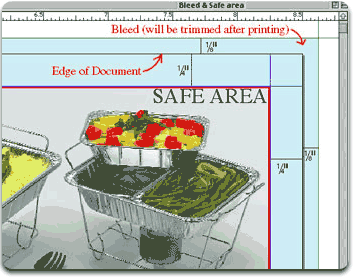
Adjust your document size to your final trim size.
If you need your background color or photo to bleed (go all the way to
the edge) you can extend the photo background to 1/8" outside the
edge of the page where it will be trimmed after printing.(if you leave
it on the edge the white paper might show after the trimming
Make sure all your important data and photos are in the safe area 1/4²
inside the page edge
2 Images and Logos (linked pictures)
Make sure that all images are CMYK color mode whatever is their origin
software and use only Tiff or EPS formats (Do Not send Jpegs, Picts, Gifs,Bmps
etc.)
All the raster images should be minimum 300 dpi resolution (or 1,200 dpi
for b/w line art)
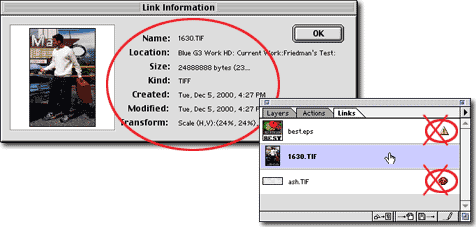
You have to send us all the linked images
Confirm the status of all linked images before you submit your files.
The link pallet should not show the missed or modified icon.
SCALING IMAGES
Scaling the image after importing it into Illustrator will change the effective resolution, that means if you scaled the image up to 200%, then the final resolution will be 150 dpi which is low resolution. You can enlarge your photo up to 125% only and you can shrink it to any size. (shrinking the photo in the photo editing software will make the file size smaller so we recommend that you do it if you¹re not using the full size photo)
3 Colors
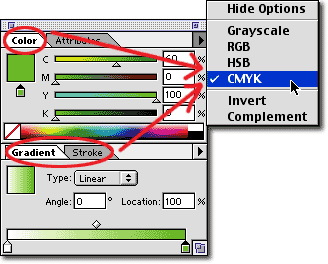
Make sure that all the colors used in Illustrator are CMYK
whatever it is Fill, Stroke or Gradient
Also all the images linked to Xpress should be in CMYK mode
COLOR SHIFT
There is a color-shift when converting from RGB to CMYK. Do not trust
the colors on your monitor. We¹ll send you a calibrated color proof
before we print your job
4 Fonts
If your document is not type heavy we recommend that you convert all the
type to outline or at least those strange fonts used for logos otherwise
make sure that you submit all fonts used in your document.
It¹s always a good idea to keep a version of your file with the type
not converted to outline in your computer. It will be much easier to correct
a mistake if you catches one after the proofs.
5 Saving your files
You can save your file in either Illustrator .ai Format or EPS format
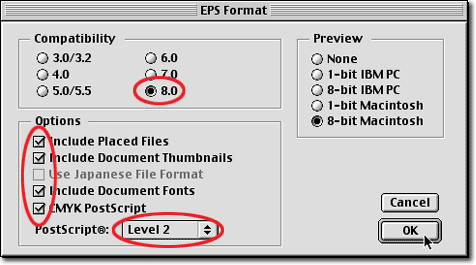
If saving as EPS:
- Set the compatibility to the highest version you have, the preview
to 8-bit IBM PC or Macintosh
- Check the boxes for: Include Placed Files, Document Thumbnails, Document
Fonts, CMYK PostScript
- Set the PostScript to Level 2
and then save your file
Make sure you send us the latest version of your file along with all the
linked photos and the fonts
Remember: if we are missing anything, this may delay your Job.
CMYKnet Creative Services
ART DIRECTION • PHOTOGRAPHY • GRAPHIC DESIGN • DIGITAL
RETOUCHING • PRINTING
20 West 22nd Street, Suite 808, New York, NY 10010
TEL: 212-463-8880 • 800-214-8812 • FAX: 212-463-8838
For more
information, please contact admin@cmyknet.com